Koboshi
To connect Koboshi to Claude or add Koboshi to ChatGPT, open Koboshi, go to Settings → Connections → Connect an AI app, and press the button for your app. Finish the last steps in that app, then sign in to Koboshi and press Approve. From then on you can save words from ChatGPT or Claude by saying “save insinuación to Koboshi” in any chat.
Open the page straight from this link: koboshi.app/learn#settings/words/connect. New to Koboshi? Signing in with Google or an emailed link creates your account.
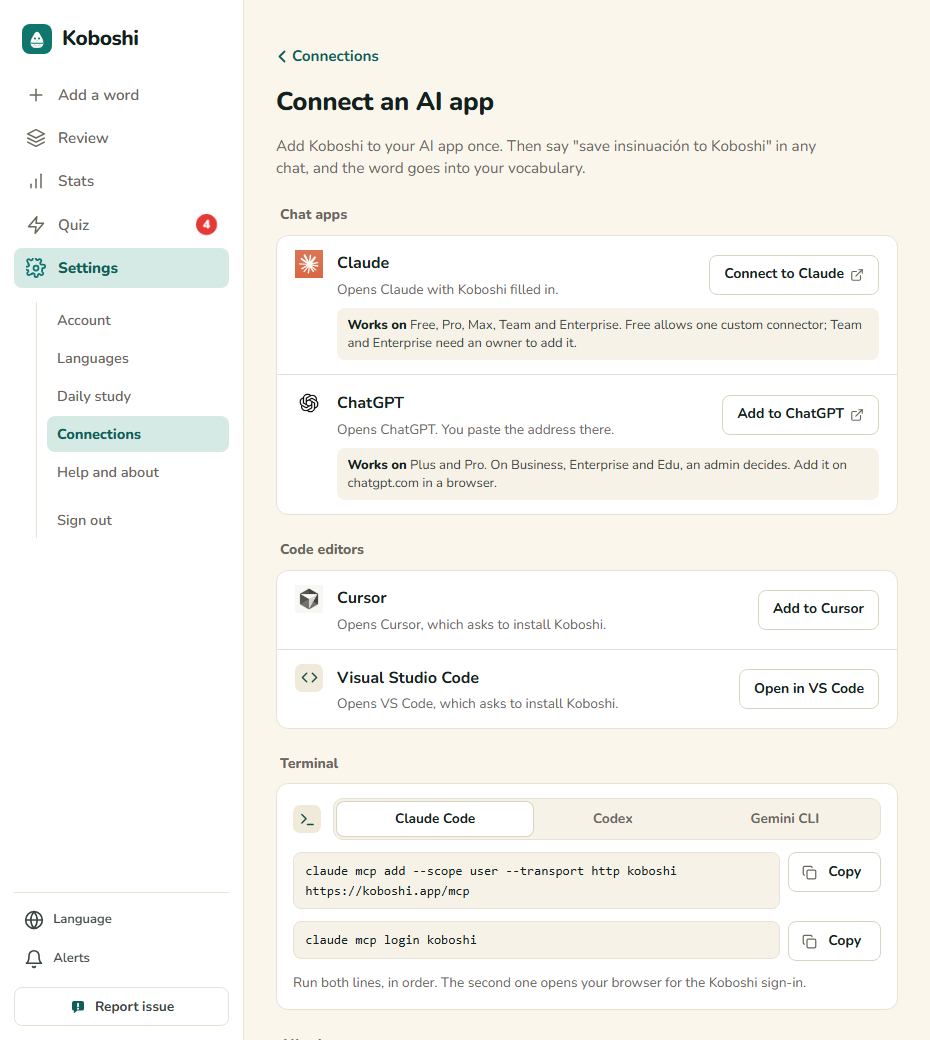
Jump to your app: Claude · ChatGPT · Cursor and VS Code · terminal apps · Gemini
Our end-to-end runs so far cover ChatGPT, Claude and Claude Code. We have not run Cursor, VS Code, Codex or Gemini CLI end to end yet; their steps here follow each maker’s own instructions, with the same address.
Claude
Works on: Free, Pro, Max, Team and Enterprise. Free allows one custom connector; Team and Enterprise need an owner to add it (Claude’s help page).
-
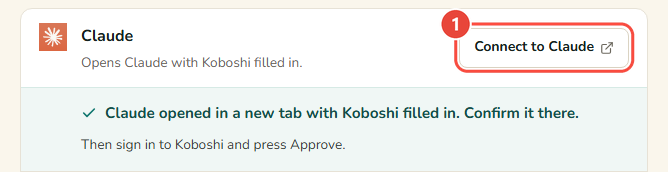
In Koboshi, open Settings → Connections → Connect an AI app and press Connect to Claude. Claude opens in a new tab with Koboshi’s name and address already filled in.
-
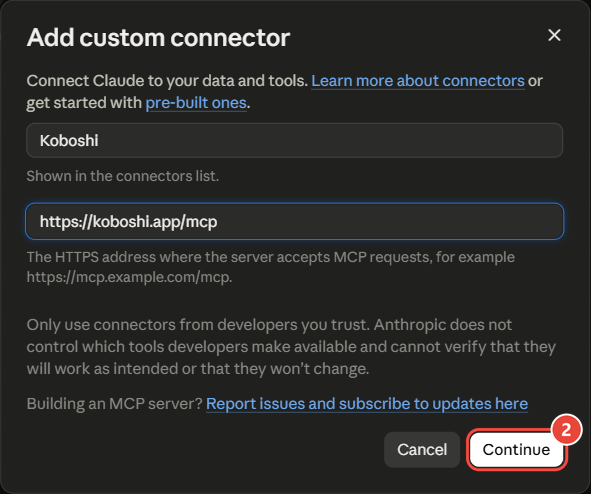
In Claude, check that the name is Koboshi and the address is https://koboshi.app/mcp, then press Continue. Claude also shows a red notice: the connector was suggested by an external link, here Koboshi’s button, and Claude asks you to verify that the name and address come from a developer you trust before adding it.
-
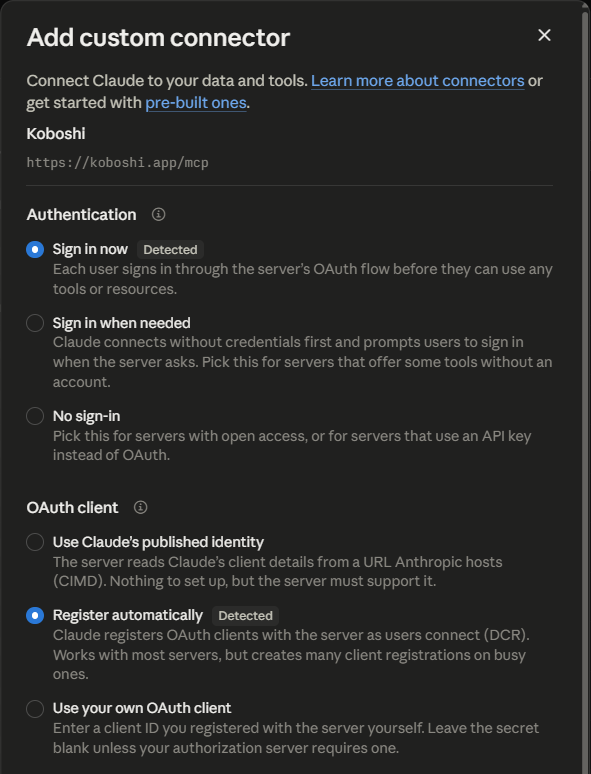
Leave the sign-in settings Claude detected as they are, and finish with Add.
-
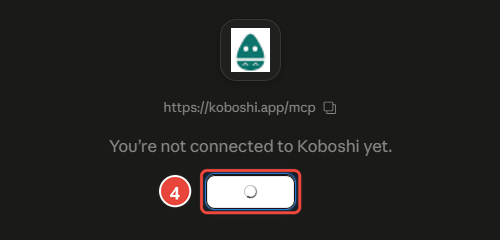
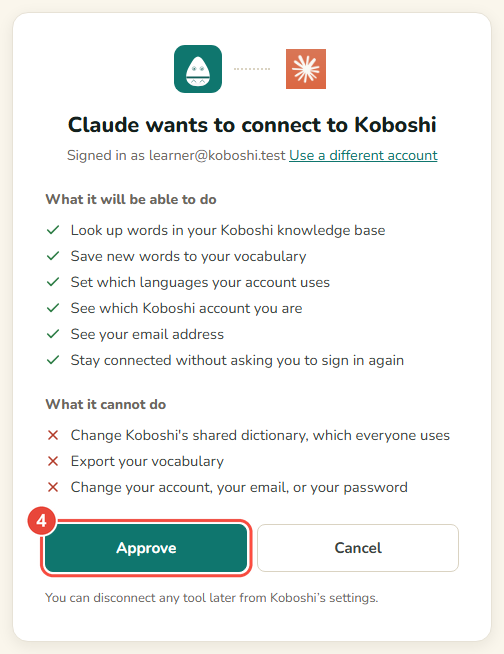
Press Connect next to Koboshi, sign in to Koboshi if asked, and press Approve.
-
In a chat, press + → Connectors and switch Koboshi on. Then ask Claude to save any word to Koboshi.
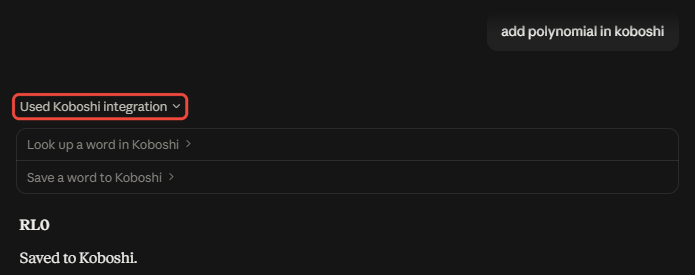
It worked if the Claude row in Koboshi’s Connect an AI app page says Connected, with a date.
If your screen looks different:
- You are signed out of Claude. Claude asks you to sign in first, then shows the filled-in window.
ChatGPT
Works on: Plus and Pro. On Business, Enterprise and Edu, an admin decides. Add it on chatgpt.com in a browser (OpenAI’s plans page).
-
In Koboshi, open Settings → Connections → Connect an AI app and press Add to ChatGPT. Koboshi copies its address, opens ChatGPT in a new tab, and lists the steps left under the button.
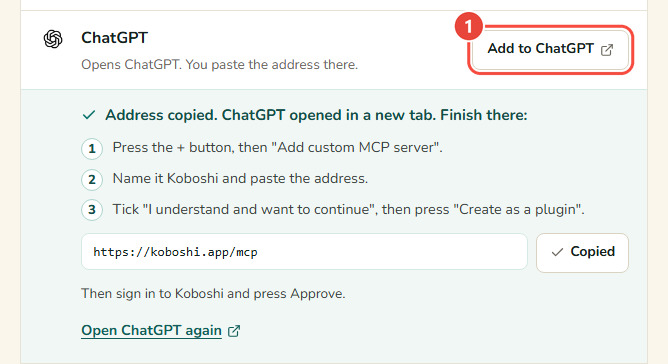
-
In ChatGPT, press Add at the top right, then Add custom MCP server.
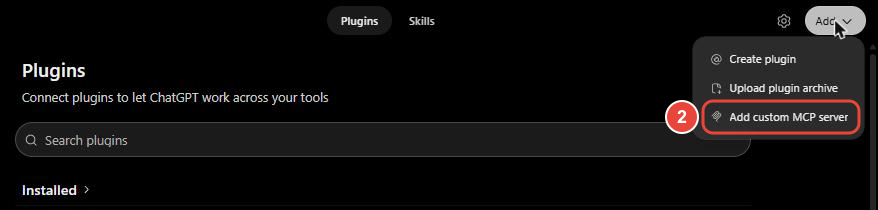
-
Name it Koboshi and paste the address. Koboshi already copied it:
https://koboshi.app/mcp -
Tick I understand and want to continue, then press Create as a plugin.
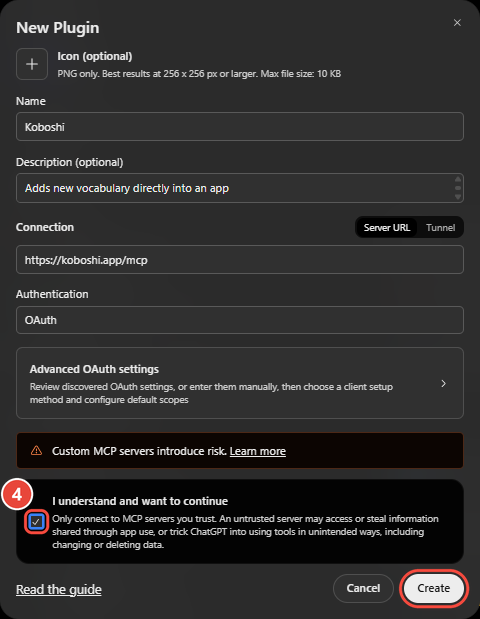
-
ChatGPT opens Koboshi. Sign in if asked, and press Approve.
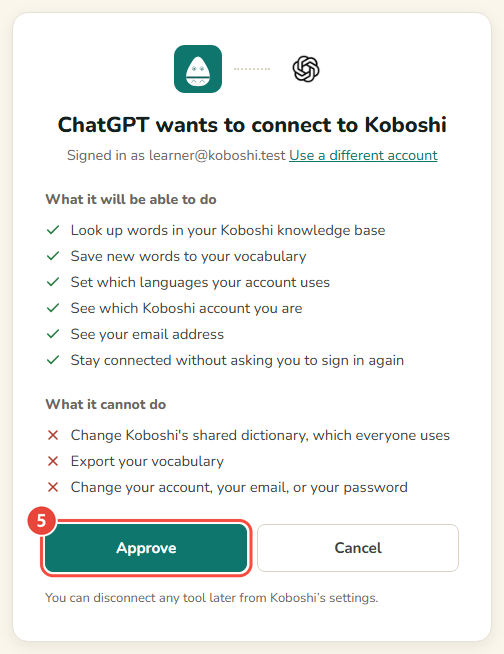
-
In any chat, type @Koboshi and ask it to save any word to Koboshi.
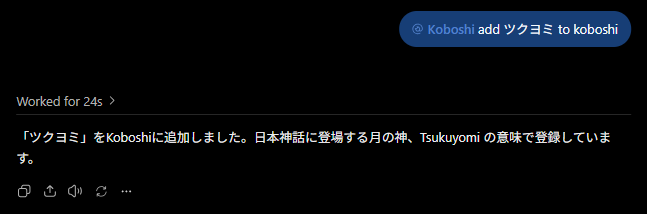
It worked if the ChatGPT row in Koboshi’s Connect an AI app page says Connected, with a date. In our own run on 2026-09-29, ChatGPT saved ツクヨミ (Tsukuyomi) to Koboshi in 24 seconds.
If your screen looks different:
- The menu has no Add custom MCP server. Some ChatGPT plans and workspaces leave it out, and some need Developer mode switched on first. OpenAI explains both on its Developer mode help page.
- You closed the ChatGPT tab too early. Press Open ChatGPT again under the ChatGPT row in Koboshi. The address is there with Copy.
Cursor and VS Code
Both run on your computer, so start in Koboshi on that same computer.
- Open Settings → Connections → Connect an AI app and press Add to Cursor or Open in VS Code.
- Cursor or VS Code opens and asks to install Koboshi. Press Install.
- The first time you use Koboshi there, sign in to Koboshi and press Approve.
If Cursor or VS Code stays closed, the app must be installed on this computer. You can also paste https://koboshi.app/mcp into its MCP settings.
Terminal apps
Claude Code, Codex and Gemini CLI connect with one or two commands. Koboshi’s Connect an AI app page lists them under Terminal, each with Copy. The commands and the checks are in Connect Koboshi to Claude Code, Codex and Gemini CLI.
Gemini
Google lets only some people add an app like Koboshi to Gemini: people 18 or over in the US, signed in with a personal Google account, using Gemini in English (Google’s help page, read 2026-10-12).
Your app has no button?
Any other app that accepts an MCP server address can take Koboshi’s address, https://koboshi.app/mcp. Koboshi’s page shows it under All other apps, with Copy. To add the address by hand inside ChatGPT or Claude, follow Add Koboshi to ChatGPT or Claude by its address.
To remove an app later, press Disconnect on its row in Connect an AI app. What to say in the chat once Koboshi is connected: Study in ChatGPT, learn in Koboshi.
App names and icons belong to their owners. Koboshi is independent and is not made or endorsed by any of them.
Steps checked on 2026-10-16 against Koboshi and the help pages of OpenAI, Anthropic, Google, Cursor and Microsoft; plans read on 2026-10-12.