Koboshi
To bring your Anki words into Koboshi, export your deck from Anki on a computer as Notes in Plain Text, then open Settings → Connections → Import words in Koboshi and choose that file. Each word keeps the meaning from your deck, up to 500 words per import.
In Anki: save your deck as a text file
-
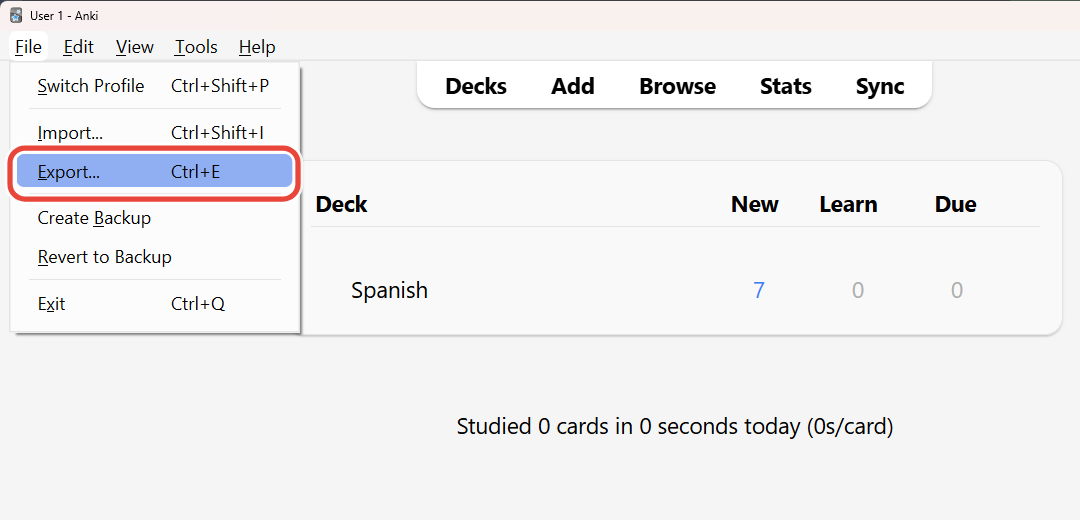
Open Anki on your computer and choose File → Export…
-
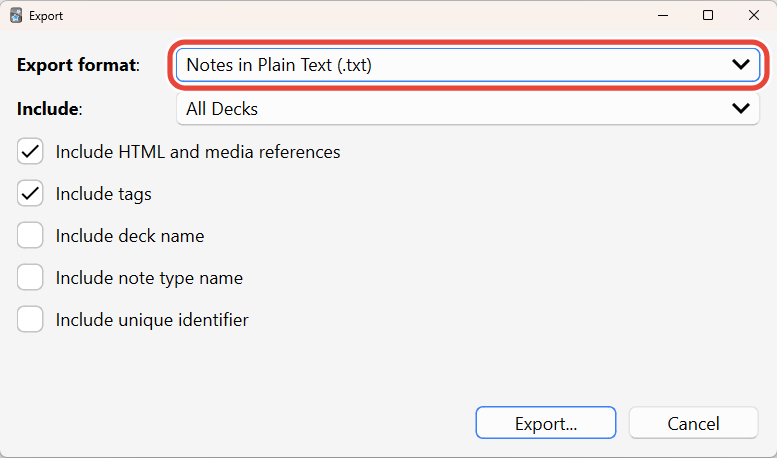
Under Export format, choose Notes in Plain Text.
-
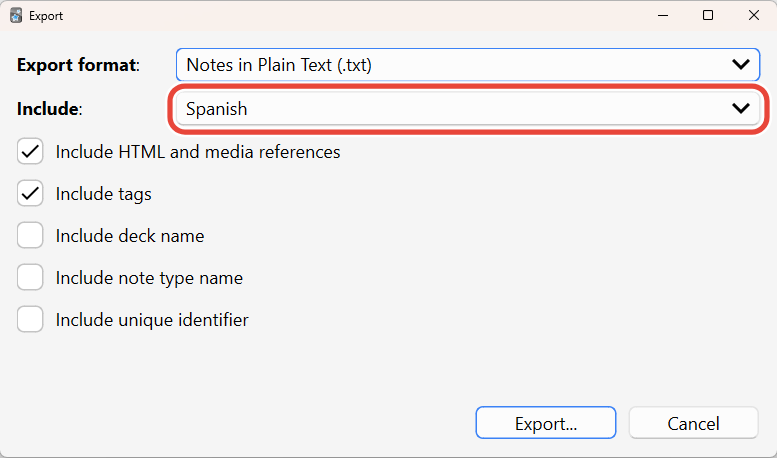
Under Include, pick the deck you want. Leave the boxes below it as they are.
-
Finish the export and save the file. Its name ends in .txt.
Anki’s manual describes this file in one line: “Each field is separated by a tab.” (Anki manual, Exporting, read 2026-10-04)
In Koboshi: import the file
-
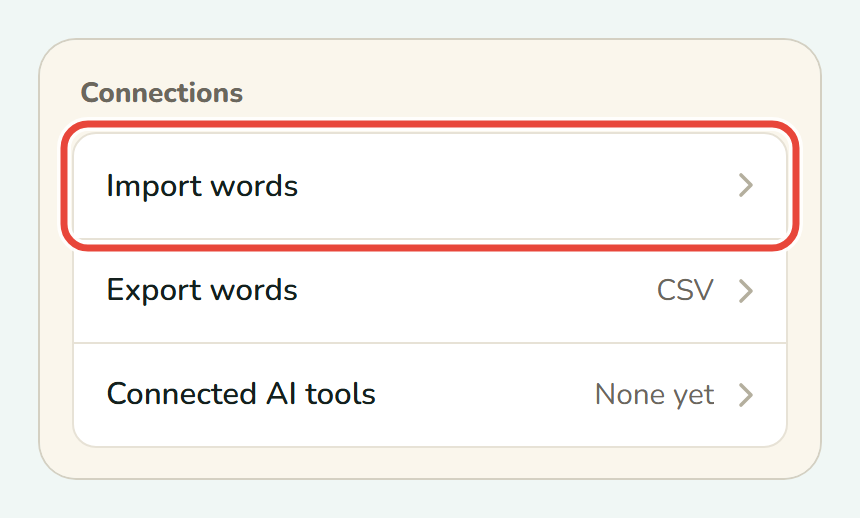
Open Settings → Connections → Import words.
-
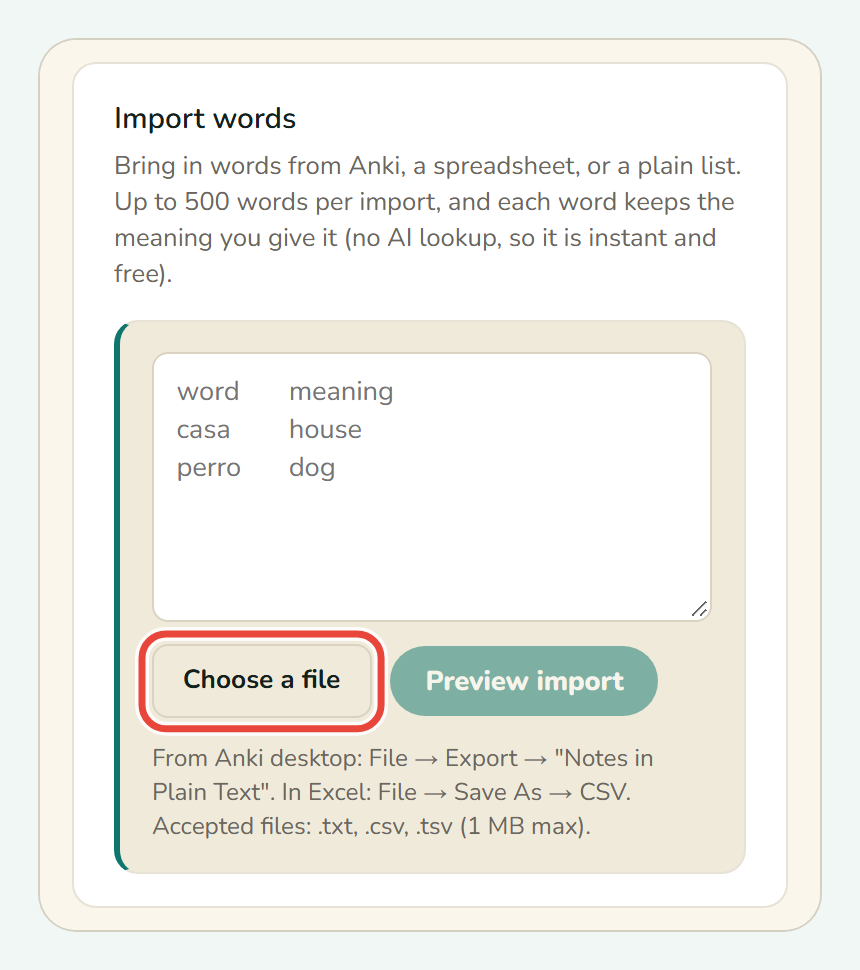
Press Choose a file and pick the .txt file from Anki.
-
Check for (Anki export detected) at the end of the preview’s top line, choose your deck’s Language, and check the column labels.
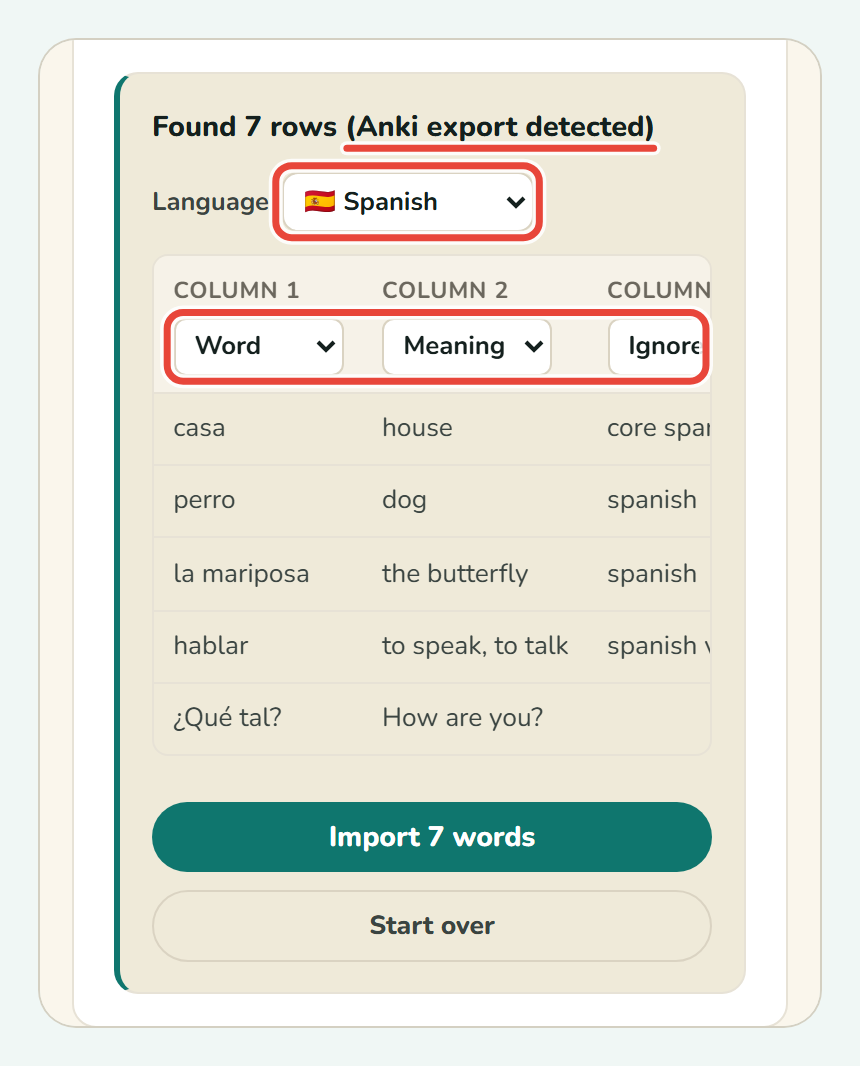
The labels are Word, Meaning, Reading, Example and Ignore. Change any wrong label before importing.
-
Press Import N words, where N is the number of words in your file.
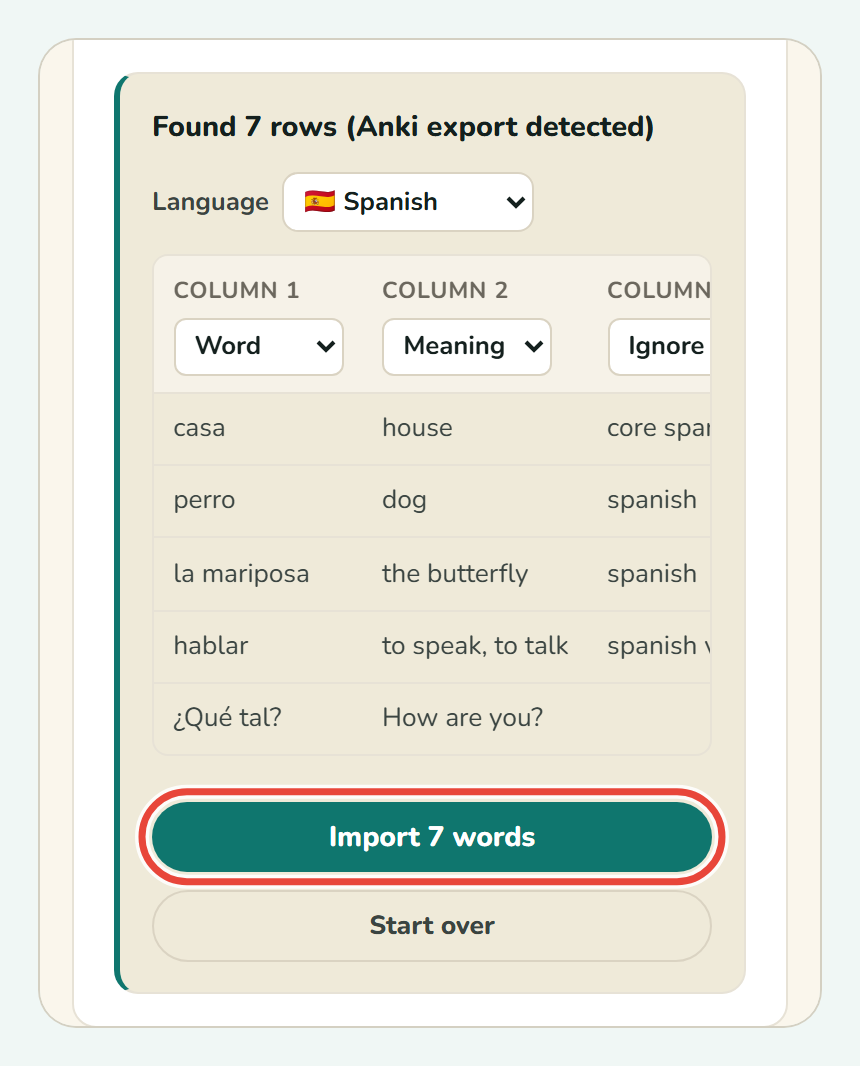
It worked if Koboshi shows Imported N words, with the number of words imported.
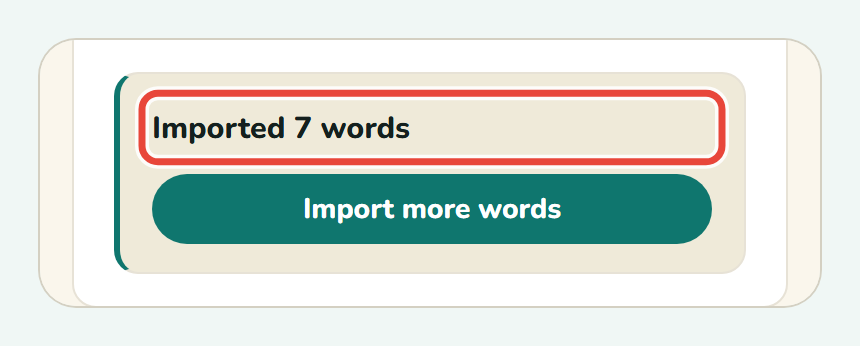
Koboshi reads the file in your browser and saves only the words you import to your account.
What comes across from Anki?
- The word and its meaning. By default, Koboshi uses the first column for the word and the next for the meaning. The meaning is saved as written in your deck.
- A reading, when your deck has a kana or pinyin column beside a kanji or hanzi column.
- The text. Bold and colours are removed, line breaks become spaces, and sound and image references are removed. The sound and image files stay in Anki.
Koboshi sets columns for tags, deck names, note types and note IDs to Ignore. Other columns default to Ignore, apart from a detected reading.
A word already in Koboshi in the same language is skipped as a duplicate, even if the capital letters differ. Importing the same file twice adds nothing. If you exported Cards in Plain Text, a reversed card is also counted as a duplicate.
Imported words start with no review history in Koboshi. Your Anki review history stays in Anki, and the imported words come into your quiz as new words at the pace shown in Settings → Daily study → New words a day.
Which export settings were checked?
The check covered every combination of the five boxes for HTML and media references, tags, deck name, note type name and unique identifier.
Koboshi’s import check on 2026-10-03 used 47 files made with Anki’s own software (anki package 26.9.3): all 47 imported correctly, with each of the 1,657 lines saved or skipped with a reason.
What if something looks wrong?
- A column has the wrong label. Change the label in the list above it before you import. For a Hindi or Urdu deck with a romanization column between the word and the meaning, set that column to Reading.
- Your deck has more than 500 words. Koboshi imports the first 500 of a file. Export one smaller deck at a time under Include in Anki, then press Import more words in Koboshi for the next one.
- Cloze cards, or readings in brackets such as 漢字[かんじ]. They arrive exactly as written in Anki, so check them in the preview.
- The file will not open. Koboshi takes .txt, .csv and .tsv files up to 1 MB. A deck package (.apkg) is a different kind of file: export again and choose Notes in Plain Text.
Steps match Koboshi and Anki as of 2026-10-04.
How this was made: This guide was drafted with AI from Koboshi’s import code and Anki’s manual. A person checked before publishing.