Koboshi
Ask ChatGPT or Claude to save any word to Koboshi, and the word lands in your Koboshi vocabulary.
ChatGPT users: jump to ChatGPT. Claude users: jump to Claude.
Set it up once per app. The address is https://koboshi.app/mcp
ChatGPT
Needs a Plus, Pro, Business, Enterprise or Edu plan, on chatgpt.com.
-
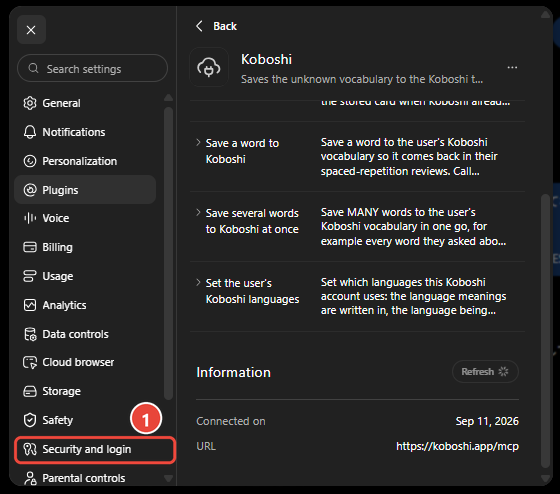
Open Settings → Security and login and switch on Developer mode. Do this first: the + in step 2 only makes a Koboshi plugin once Developer mode is on.
-
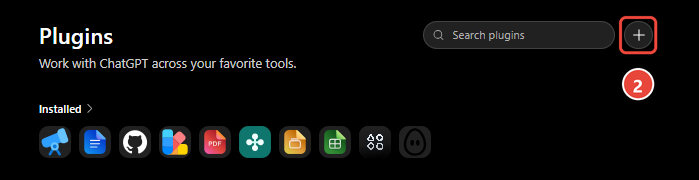
Open Plugins and press + at the top right.
-
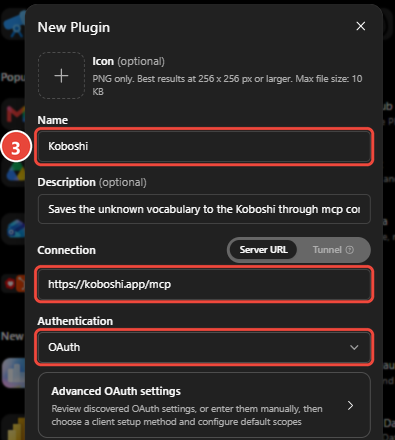
Fill in Name Koboshi, Server URL https://koboshi.app/mcp, Authentication OAuth.
-
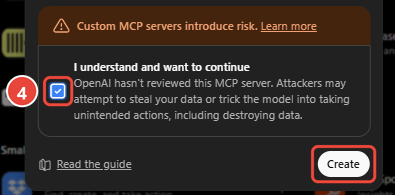
Tick I understand and want to continue, then press Create.
-
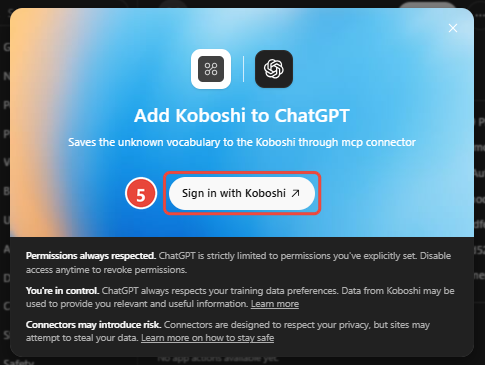
Press Sign in with Koboshi, sign in, then press Approve.
-
Open a new chat and ask ChatGPT to save any word to Koboshi.
It worked if ChatGPT asks Allow ChatGPT to use Koboshi?
Claude
-
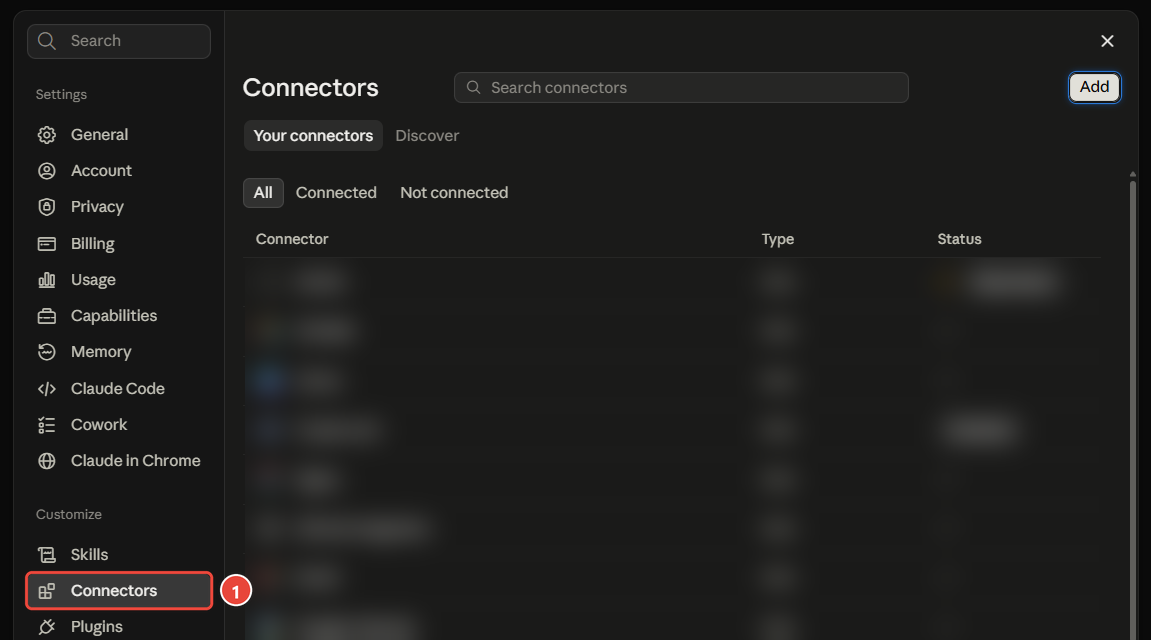
Open Settings → Connectors.
-
Press Add.

-
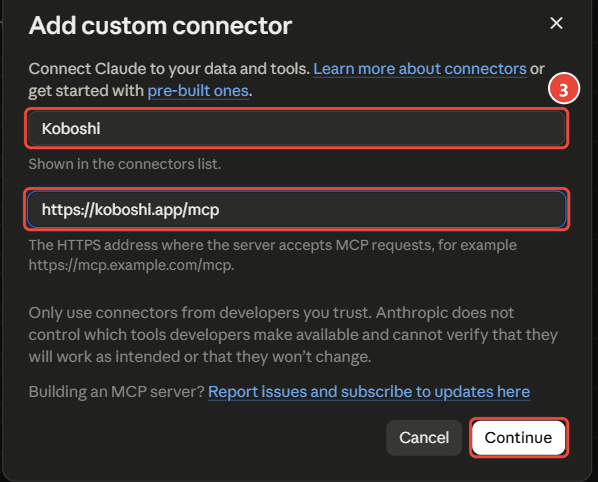
Type Koboshi as the name, paste https://koboshi.app/mcp, and press Continue.
-
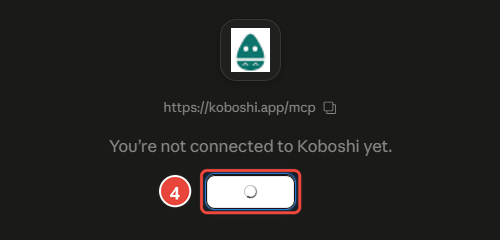
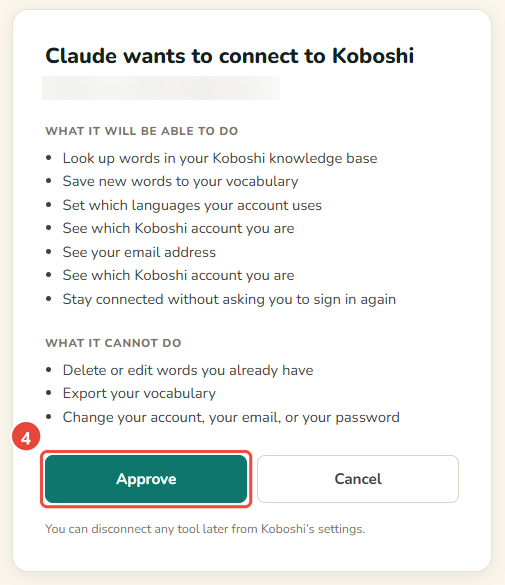
Press Connect next to Koboshi, sign in, then press Approve.
-
In a chat, press + → Connectors. Koboshi is now on the list: switch it on.
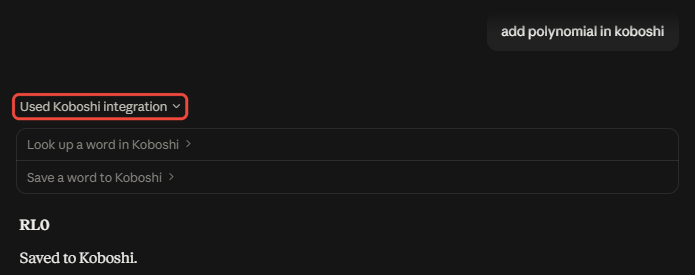
Check: ask Claude to save any word to Koboshi.
If it does not work
-
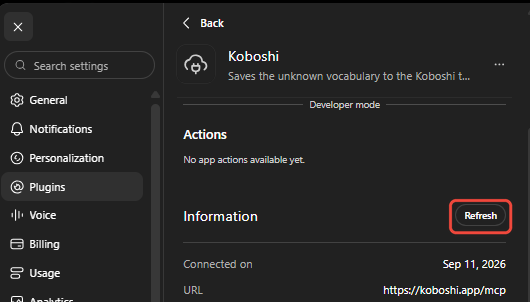
ChatGPT does not show a new Koboshi feature: open Plugins → Koboshi, press Refresh, then start a new chat.
-
Claude does not use Koboshi, or misses a new Koboshi feature: open Settings → Connectors → Koboshi, press Disconnect, press Connect again, then open a new chat.
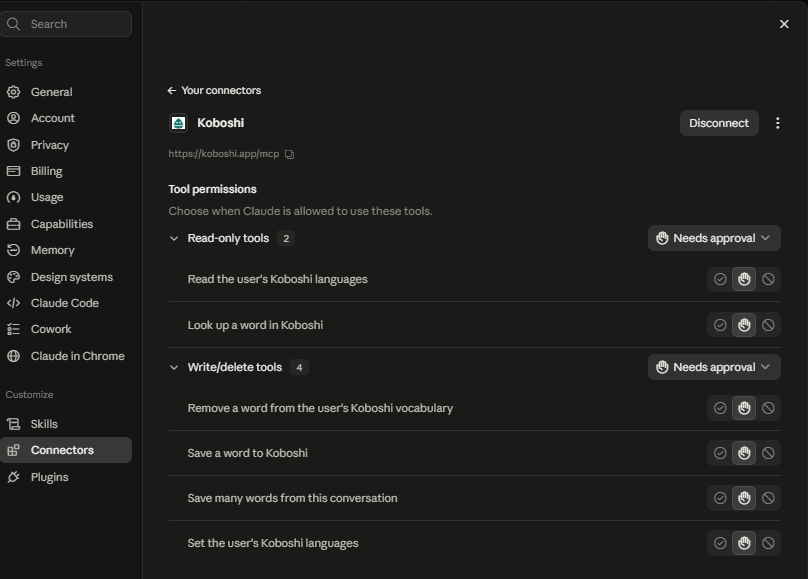
-
Wrong Koboshi account: press Use a different account on the approval page.
-
Still stuck: write to support@koboshi.app.
Using Claude Code or Codex? Connect them here. Steps checked on 2026-09-29.